
You likely find yourself frustrated when your laptop battery drains fast, impacting productivity and mobility. Fortunately, with just five simple steps, you can triple the lifespan of your battery and avoid the hassle of frequent recharging. These strategies include adjusting settings, managing applications, and optimizing usage habits, all of which will lead to significant improvements. Embrace these practical tips to enhance your laptop’s performance and enjoy longer, uninterrupted work sessions.
Key Takeaways:
- Adjust screen brightness and use battery saver mode to extend battery life.
- Close unused applications and disable background processes that consume power.
- Regularly update software and drivers to optimize battery performance.
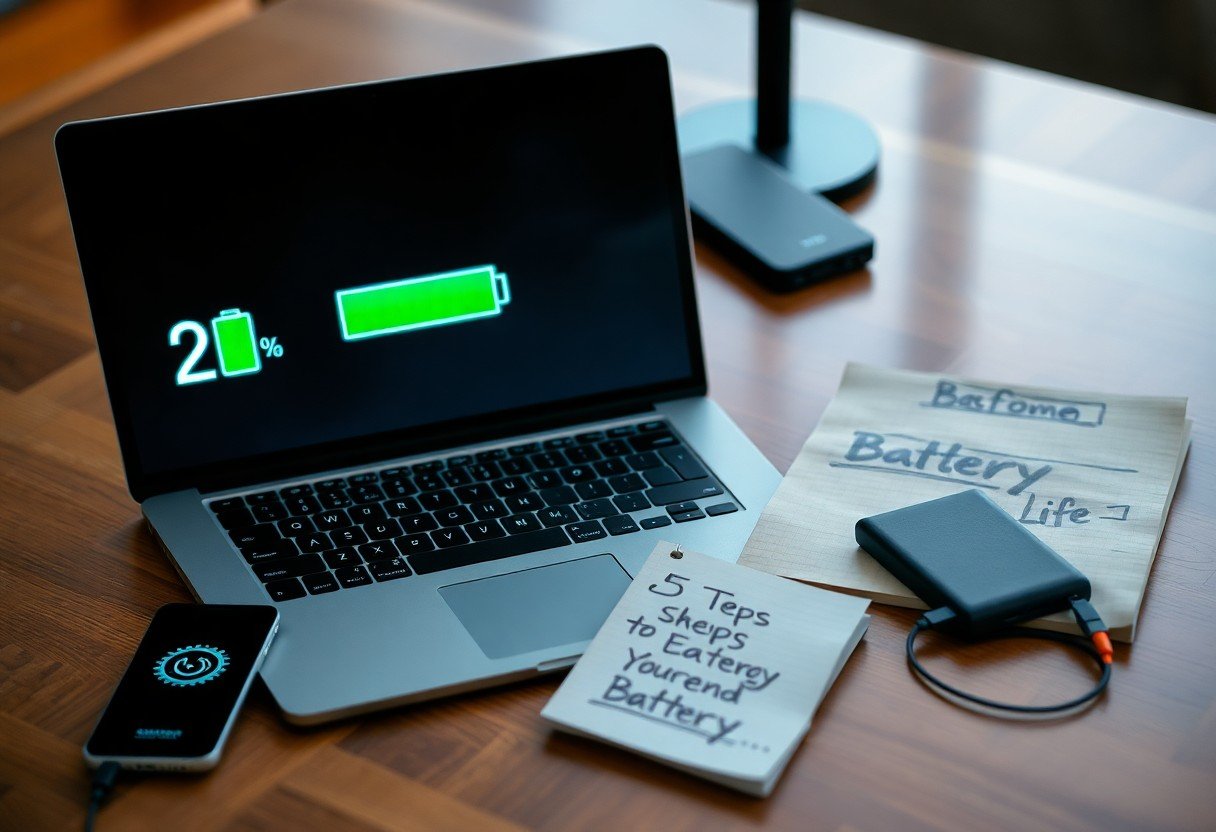
Understanding Laptop Battery Drain
To effectively tackle battery drain issues, you first need to understand why your laptop battery is depleting faster than expected. Factors such as high-performance demands, inefficient background processes, and environmental conditions can contribute to rapid battery loss. By identifying these influences, you can implement targeted solutions to enhance your battery life.
Common Causes of Rapid Drain
Several factors can lead to your laptop battery draining quickly. High screen brightness, multiple running applications, outdated software, and background updates are common culprits. Additionally, peripherals like external drives and USB devices draw power, further accelerating battery depletion. Awareness of these causes allows you to minimize their impact on your device.
Signs Your Battery Needs Attention
You may notice several indicators that your battery requires immediate attention. If your laptop shuts down unexpectedly or only operates when plugged in, it’s a significant sign of battery failure. Other symptoms include noticeably shorter usage times or overheating during operation. Recognizing these signs early can prevent further damage.
When you experience your laptop shutting down with a significant charge left or if it struggles to hold a charge for even a short session, it’s necessary to address the battery’s health. Manufacturers suggest that a battery should retain about 80% of its original capacity after 300-500 charge cycles. If your performance drops below this threshold, consider consulting a professional or replacing the battery to restore functionality.
Step 1: Adjust Power Settings
Adjusting your power settings is a fundamental step in prolonging your laptop’s battery life. By optimizing these settings, you can significantly reduce unnecessary power consumption and enhance efficiency during use.
Configuring Power Plans
Start by accessing your laptop’s power settings through the Control Panel or System Preferences, depending on your operating system. Choose a power plan that suits your usage patterns, such as ‘Power Saver’ for everyday tasks or ‘Balanced’ for a mix of performance and efficiency. Customizing these settings allows you to tweak options like sleep mode, screen brightness, and processor power, directly impacting your battery life.
Utilizing Battery Saver Mode
Enabling Battery Saver mode is a straightforward way to maximize your battery life. This feature automatically adjusts settings, reducing screen brightness and limiting background activity, effectively extending the time between charges. You can activate this mode easily from your system tray or settings menu, which is particularly useful during long travels or when outlet access is limited.
When you activate Battery Saver mode, your laptop will prioritize important tasks, disabling non-vital features such as automatic updates and notifications. This action can substantially improve battery performance, often increasing usage time by up to 30%, depending on your laptop’s original consumption. To achieve sustainable battery life, combine this mode with other tips, like closing unnecessary applications or disabling Bluetooth.
Step 2: Manage Background Applications
To maximize your laptop’s battery life, managing background applications is necessary. These programs can consume significant power, even when you’re not actively using them. By keeping a vigilant eye on the applications that run behind the scenes, you can significantly reduce battery drain and enhance overall efficiency.
Identifying Resource-Heavy Apps
Start by identifying resource-heavy apps that may be consuming battery life without your knowledge. Utilize Task Manager on Windows or Activity Monitor on macOS to gain insights into which applications are using the most CPU and memory. Pay special attention to apps that remain open for extended periods, as they can drain your battery rapidly.
Closing Unnecessary Programs
Once you’ve identified the resource-heavy applications, it’s time to close any unnecessary programs. This step can free up system resources and reduce power consumption, leading to a significant extension of battery life. Simply right-click the application in Task Manager or Activity Monitor and select “End Task” or “Quit.” Streamlining your active applications not only preserves battery life but also enhances your laptop’s overall performance.
For instance, if you notice that your web browser is continuously using a high percentage of CPU due to multiple tabs or an open video stream, closing those tabs or pausing playback can lead to meaningful savings in battery use. Every small adjustment matters; reducing the number of open applications can result in hours of additional battery life over time, allowing you to work or enjoy entertainment without frequent recharges.
Step 3: Optimize Display Settings
Adjusting your display settings can significantly enhance battery performance. Simple modifications, like reducing brightness and timing out your screen, contribute to extending your laptop’s operational duration. Every pixel demands power; thus, these adjustments are vital to ensure your laptop lasts throughout the day without frequent recharges.
Reducing Brightness
Lowering your screen’s brightness is one of the quickest ways to conserve battery life. Your laptop’s display accounts for a large portion of its energy usage, and even a small reduction can keep your battery alive longer. Consider reducing brightness to around 50% or using adaptive brightness settings for optimal efficiency based on ambient light.
Screen Timeout Adjustments
Setting a shorter screen timeout can prevent unnecessary battery drain. If your display stays active when you’re not using it, you’ll quickly deplete your battery. By configuring your screen to turn off after a few minutes of inactivity, you ensure that energy is conserved throughout the day.
To adjust your screen timeout, navigate to your laptop’s display settings. Set the timeout to 5-10 minutes for optimal results. This implementation can save battery life without requiring significant lifestyle changes. In fact, studies suggest that a 5-minute timeout can extend battery life by up to 20%. Each minute adds up, encouraging you to prioritize screen timeout settings as a simple yet effective strategy for managing your laptop’s energy consumption.
Step 4: Upgrade Your Hardware
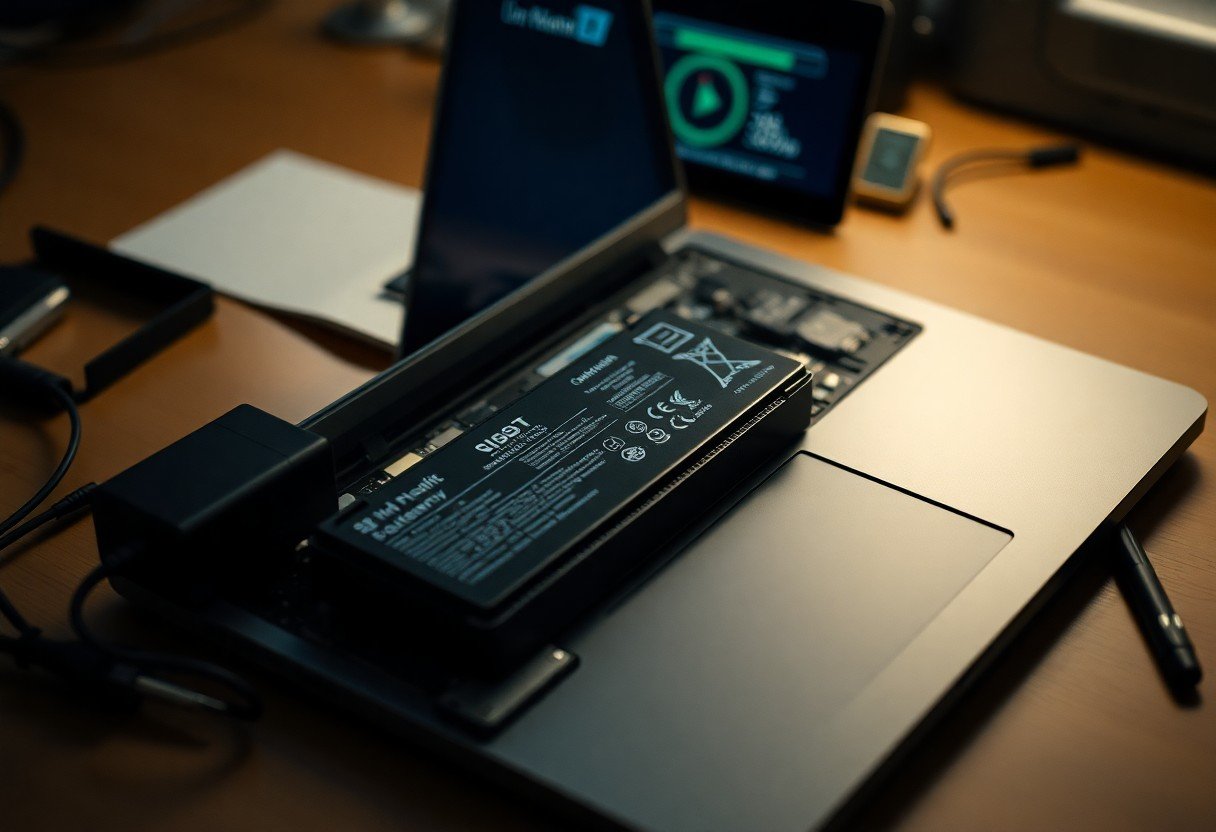
Upgrading your hardware can provide a significant boost in battery life and overall performance. Consider components that are designed for energy efficiency rather than just speed. Investing in high-quality, efficient hardware can mean less power draw and longer usage times without the need to recharge frequently.
Consider SSDs for Efficiency
Switching to a solid-state drive (SSD) can greatly improve your laptop’s efficiency. Unlike traditional hard drives (HDDs), SSDs have no moving parts, resulting in faster data access speeds and reduced power consumption. In fact, SSDs can offer up to 75% less power use than HDDs, enhancing your laptop’s battery duration significantly.
Battery Replacement Options
If your laptop battery is deteriorating, consider replacing it. Most laptops allow you to swap out the battery yourself, which is often both cost-effective and straightforward. Replacing an old battery with a new one can restore your laptop’s longevity, cutting down on recharge time and maximizing usage between charges.
For models with embedded batteries, check if your manufacturer offers replacement services or guides on DIY installation. Many brands provide high-capacity batteries that can last longer than standard options, so look for OEM (original equipment manufacturer) batteries to ensure compatibility and reliability. Before selecting a battery, confirm your model specifications to avoid any compatibility issues and to make the most of your investment.
Step 5: Regular Maintenance Practices
Engaging in regular maintenance practices is important for keeping your laptop running efficiently and extending its battery lifespan. By establishing a routine that includes software updates and hardware cleaning, you can minimize battery drain and enhance overall performance. Neglecting these tasks can lead to significant issues, including faster battery depletion and overheating.
Keeping Software Updated
Updating your software is vital for battery optimization. Manufacturers frequently release updates that fix bugs and improve battery management, ensuring that your laptop utilizes its energy more efficiently. Ignoring updates can lead to unnecessary battery drain, as outdated programs may consume more power and introduce security vulnerabilities.
Cleaning Your Laptop Internally
Internally cleaning your laptop helps prevent overheating, a common issue that contributes to rapid battery drain. Dust and debris can clog fans and air vents, reducing airflow. This leads to higher temperatures, which can negatively impact battery performance. Regularly dusting out your laptop’s internals ensures optimal cooling and energy efficiency.
Final Words
Now that you understand how to extend your laptop battery life, you can implement these five practical steps to significantly reduce drain. By adjusting your settings, managing applications, optimizing battery performance, and maintaining your hardware, you can triple the longevity of your laptop’s battery. With these strategies, you’ll enhance your productivity and enjoy a more reliable user experience. Embrace these changes, and enjoy your laptop without the constant worry of battery drain.
FAQ
Q: Why does my laptop battery drain faster than expected?
A: Several factors can contribute to rapid battery drain, including high screen brightness, multiple applications running simultaneously, outdated battery drivers, and excessive background processes.
Q: How can adjusting my screen brightness help extend battery life?
A: Lowering screen brightness reduces the amount of energy consumed by the display, which can significantly prolong battery life. Aim to set brightness at a level comfortable for your eyes while still conserving power.
Q: What role do background applications play in battery drainage?
A: Background applications continuously use system resources, leading to increased power consumption. Closing unnecessary programs can help conserve battery life and enhance overall performance.
Q: Are there specific settings I can change to save battery life?
A: Yes, enabling power-saving mode, disabling Bluetooth and Wi-Fi when not in use, and turning off keyboard backlighting can help reduce battery usage significantly.
Q: How often should I check for battery driver updates?
A: Regularly checking for battery driver updates, at least once every few months, ensures optimal performance and can resolve issues related to battery drain. Keeping the operating system up to date is also beneficial.