
Most users experience frustration when their desktop performs slowly, impacting productivity and causing delays. Fortunately, you can quickly resolve this issue with just a few simple adjustments. By following these seven straightforward clicks, you can enhance your system’s performance and enjoy a noticeably faster experience. Don’t let a sluggish desktop hold you back; take charge and optimize your machine now!
Key Takeaways:
- Identifying and disabling unnecessary startup programs can significantly improve boot times.
- Regularly cleaning up the hard drive and removing unused files helps enhance overall performance.
- Upgrading RAM or switching to an SSD can lead to noticeable speed improvements for desktop systems.
Analyze Your System
To effectively speed up your desktop, a thorough analysis of your system is imperative. Start by identifying any bottlenecks affecting performance, whether they stem from software or hardware. Use built-in tools like Task Manager or third-party applications to gain insights into what might be holding your system back, allowing for targeted improvements that can have a significant impact on your overall experience.
Check for Background Processes
Background processes can consume valuable system resources without your awareness. Access Task Manager to review running applications and services, as some may be unnecessary or malfunctioning. Disabling these processes can free up RAM and CPU power, ultimately improving your system’s responsiveness and speed.
Assess Hardware Performance
Evaluating your hardware is vital for understanding performance limitations. Check your RAM usage, CPU load, and disk performance to identify any components that fall short. If your RAM consistently operates near its maximum capacity or your hard drive is slow, it may be time to consider upgrades instead of just software fixes.
When assessing hardware performance, utilize tools such as Windows Performance Monitor or third-party benchmarking applications. Monitor metrics like memory usage, CPU frequency, and disk I/O rates. For instance, if your computer has less than 8GB of RAM and you’re running multiple applications, upgrading to at least 16GB can lead to noticeable improvements. Additionally, if you’re still using a traditional hard drive, switching to an SSD can reduce load times dramatically, enhancing your overall user experience significantly.
Optimize Startup Programs
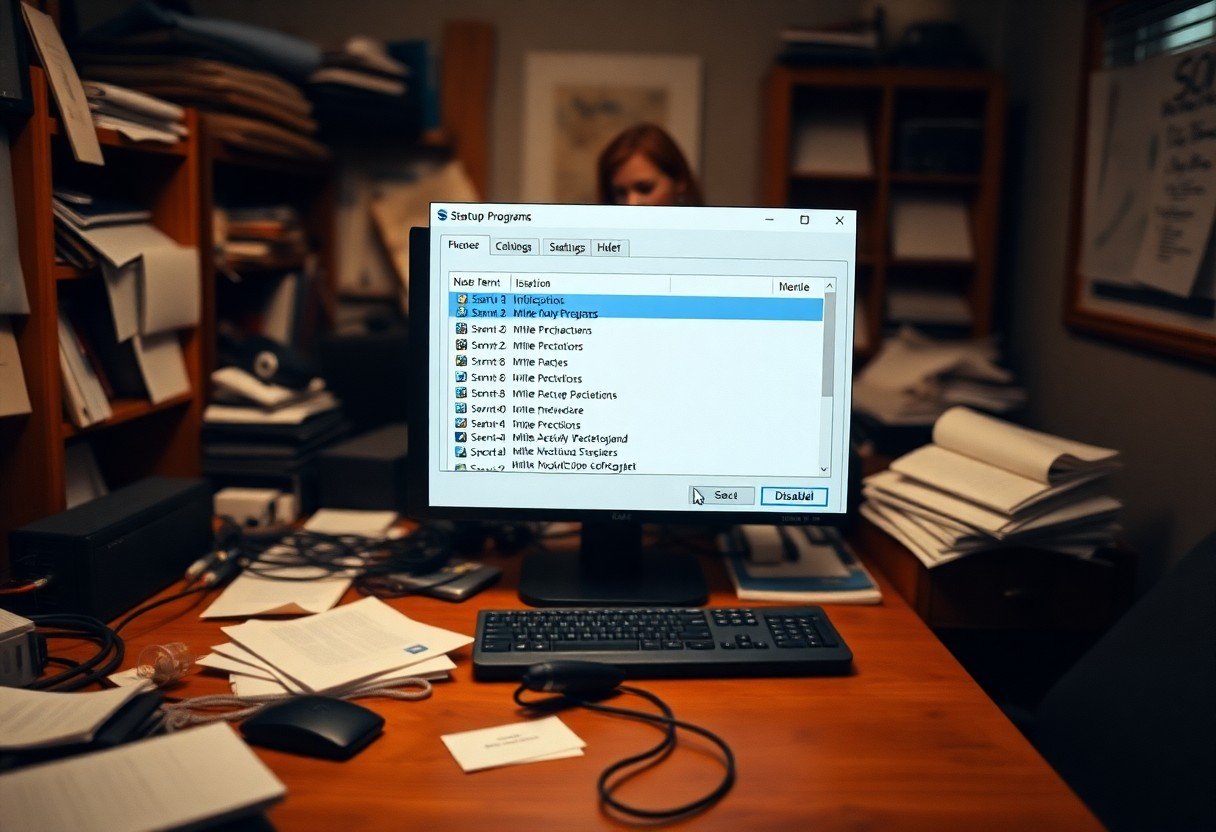
To boost your desktop’s speed, optimizing startup programs is imperative. By managing what loads during startup, you can greatly enhance boot times and overall performance. Each program that runs at startup consumes system resources, potentially leading to a snail-paced experience. With just a few clicks, you can eliminate the bloat and allow your system to start quickly and efficiently.
Disable Unnecessary Applications
Review your startup list and disable unnecessary applications that automatically launch when you power on your desktop. Programs such as cloud storage services or chat apps often set themselves to run at startup without your explicit need, impacting system resources. Disabling these can lead to a noticeable increase in speed and responsiveness.
Manage Startup Tasks
Additionally, you should actively manage startup tasks to ensure that only imperative programs are running. Utilize built-in tools like Task Manager on Windows or System Preferences on Mac to review and modify startup items. By fine-tuning these settings, you’ll streamline your boot process and optimize performance substantially.
Open Task Manager by pressing Ctrl + Shift + Esc, then navigate to the ‘Startup’ tab. Here, you’ll see a list of programs that launch at startup, along with their impact on startup time. Right-click on any item you don’t need immediately and choose ‘Disable’. For instance, if you’re not using applications like Spotify or Adobe Reader at login, disabling them can prevent delays. Regularly revisiting this list ensures that only imperative tasks are running, keeping your system agile and responsive.
Clean Up Disk Space
Cleaning up disk space is necessary for optimizing your desktop’s performance. Over time, unnecessary files and applications can pile up, slowing down your system significantly. By regularly maintaining your disk space, you ensure your desktop runs efficiently, allowing programs to load faster and improving overall responsiveness. Taking just a few minutes to clear out the clutter can lead to noticeable improvements.
Use Disk Cleanup Tools
Utilizing built-in disk cleanup tools is a simple yet effective way to reclaim valuable storage space. Tools like Windows Disk Cleanup or macOS Storage Management allow you to quickly identify and remove files such as temporary files, system caches, and emptied recycle bins, freeing up significant disk space with just a few clicks.
Remove Unused Applications
Identifying and uninstalling unused applications can dramatically enhance your system’s performance. Keeping applications you rarely use not only takes up disk space but may also consume resources during startup, further hindering your desktop’s speed. Regularly auditing your applications and removing those that no longer serve you is a proactive approach to maintaining a swift and responsive system.
To effectively remove unused applications, start by reviewing your installed programs list. Look for software that you haven’t opened in months; if it’s no longer relevant, uninstall it. Consider programs that come pre-installed on your system but that you never use, as they can take up significant storage. On average, users can reclaim several gigabytes by eliminating these dormant applications, resulting in a faster and more efficient desktop experience.
Update Your Software
Keeping your software up-to-date is vital for maintaining optimal desktop performance. Software updates often include bug fixes, security enhancements, and performance improvements that can help speed up your system. Regular updates also ensure compatibility with newer applications and prevent software conflicts that may slow you down. Make it a habit to check for updates frequently to keep your desktop running smoothly.
Keep Operating System Updated
Regularly updating your operating system is necessary for receiving the latest security patches and performance enhancements. Each update can significantly reduce vulnerabilities that slow down your machine while improving stability. Set your system to automatically download and install updates, or check manually at least once a month to keep your OS up-to-date.
Update Drivers and Applications
Updating drivers and applications can have a significant impact on your desktop speed. Outdated drivers often lead to inefficient performance, while application updates bring new features and optimizations. Prioritize updating necessary drivers like graphics and chipset, as they directly influence your system’s responsiveness.
Updating drivers and applications not only enhances performance but also resolves known issues that could cause your desktop to lag. For example, a recent graphics driver update from NVIDIA or AMD could improve gaming performance by as much as 30%, showcasing how impactful these updates can be. Regularly check the manufacturer’s website or use a driver updater tool to automate this process efficiently. Likewise, ensuring your applications are current keeps them running smoothly, reduces crashes, and often includes useful new functionalities that can help streamline your tasks.
Defragment Your Hard Drive
Defragmenting your hard drive can significantly enhance your desktop’s speed. Over time, files become scattered across your drive, causing longer access times. By rearranging fragmented data, you can improve load times and overall efficiency.
Understand Fragmentation
Fragmentation occurs when files are split into pieces and stored in non-contiguous spaces on your hard drive. As you save, modify, or delete files, empty gaps form, leading to longer read times as the drive head moves around to access these scattered fragments. Understanding this process is key to optimizing performance.
Use Built-in Defragmentation Tools
Your operating system likely includes built-in defragmentation tools that can automate the optimization process. For Windows computers, you can access the Defragment and Optimize Drives utility, while Mac users can rely on the system’s self-managing functionality. These tools analyze your hard drive’s fragmentation level and reorganize files efficiently.
To use the built-in defragmentation tool on Windows, open the Start menu, type “Defragment,” and select the Defragment and Optimize Drives option. You can then select your hard drive and click “Optimize.” The tool not only defragments but also consolidates free space, enhancing read/write speeds. For optimal results, perform this task periodically or set a schedule; every month is often sufficient for standard usage. Running this utility can lead to noticeable improvements in boot times and application launches, making your overall experience more seamless.
Upgrade Hardware Components
Upgrading hardware components can lead to significant performance improvements for your desktop. Investing in the right upgrades, like increasing memory or switching to faster storage devices, can provide a noticeable boost in speed and efficiency. Before making an upgrade, assess your usage needs and current hardware limitations to determine the best approach.
Add More RAM
Adding more RAM can drastically enhance your desktop’s performance, especially if you frequently run multiple applications simultaneously. Upgrading from 4GB to 8GB or more can reduce lag, improve multitasking capabilities, and streamline overall computing experiences. Look for compatible RAM modules that match your motherboard specifications for optimal results.
Consider an SSD
Switching from a traditional hard drive to a Solid State Drive (SSD) can drastically reduce load times and boost system responsiveness. SSDs operate much faster, with read/write speeds often exceeding 500 MB/s, compared to around 100 MB/s for standard hard drives. This upgrade transforms how quickly applications launch and how swiftly your operating system boots up.
Moreover, SSDs are more reliable since they have no moving parts, resulting in a lower risk of mechanical failure. If you use demanding applications or play resource-intensive games, an SSD can drastically improve your overall experience by ensuring faster file access and smoother performance. Transitioning your operating system and key applications to an SSD can minimize delays, resulting in a more efficient workflow.
FAQ
Q: What are common reasons for a slow desktop?
A: Common reasons include insufficient RAM, too many startup programs, outdated software, fragmented hard drives, and excessive background processes.
Q: How can I identify which programs are slowing down my desktop?
A: Use Task Manager (Ctrl + Shift + Esc) to view running processes and their resource usage. Highlight any programs consuming excessive CPU or memory and consider closing or uninstalling them.
Q: What steps can I take to speed up my desktop in 7 clicks?
A: 1) Uninstall unused programs. 2) Disable unnecessary startup items. 3) Clear temporary files. 4) Run disk cleanup. 5) Defragment your hard drive. 6) Update your operating system and drivers. 7) Upgrade hardware, like adding RAM.
Q: Will upgrading hardware improve performance?
A: Yes, increasing RAM, installing a solid-state drive (SSD), or upgrading the CPU can significantly enhance desktop performance and reduce lag.
Q: How often should I perform maintenance on my desktop?
A: Regular maintenance, such as cleaning up files, checking for updates, and monitoring performance, should be done every few months to keep your desktop running smoothly.